Azure Network Watcher
1. Network Watcher
Azure Network Watcher provides a suite of tools to monitor, diagnose, view metrics, and enable or disable logs for Azure IaaS (Infrastructure-as-a-Service) resources. Network Watcher enables you to monitor and repair the network health of IaaS products like virtual machines (VMs), virtual networks (VNets), application gateways, load balancers, etc. Network Watcher isn't designed or intended for PaaS monitoring or Web analytics.

1.1. Network diagnostic tools
Network Watcher offers seven network diagnostic tools that help troubleshoot and diagnose network issues:
- IP flow verify
- NSG diagnostics
- Next hop
- Effective security rules
- Connection troubleshoot
- Packet capture
- VPN troubleshoot
1.2. IP flow verify
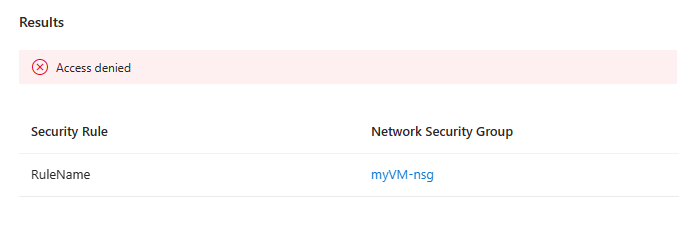
IP flow verify allows you to detect traffic filtering issues at a virtual machine level. It checks if a packet is allowed or denied to or from an IP address (IPv4 or IPv6 address). It also tells you which security rule allowed or denied the traffic.

IP flow verify returns Access denied or Access allowed, the name of the security rule that denies or allows the traffic, and the network security group
1.3. NSG diagnostics
NSG diagnostics allows you to detect traffic filtering issues at a virtual machine, virtual machine scale set, or application gateway level. It checks if a packet is allowed or denied to or from an IP address, IP prefix, or a service tag. It tells you which security rule allowed or denied the traffic.
Example:

Once NSG diagnostics completes checking all security rules, it displays the result.
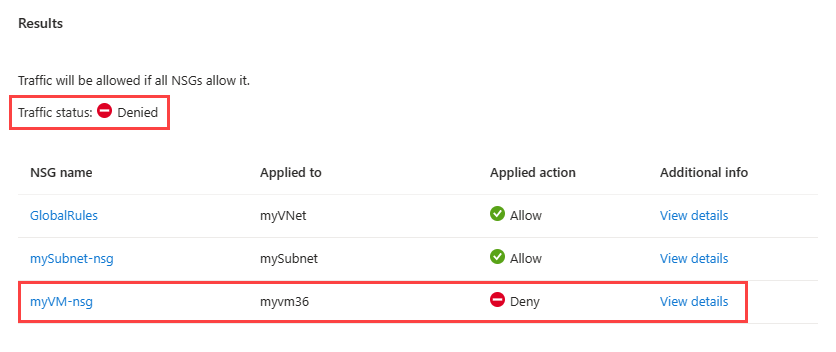
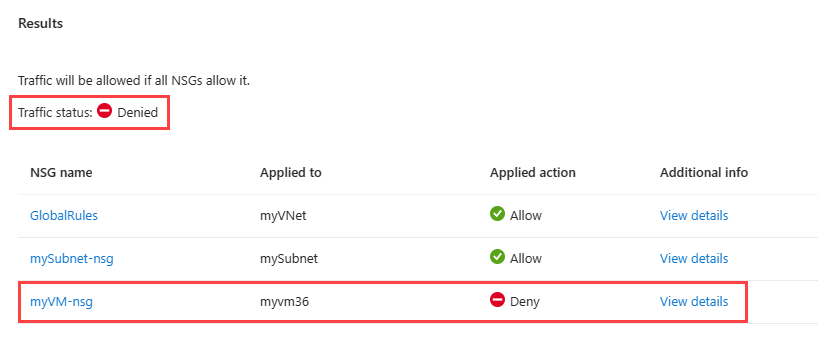
Select View details of myVM-nsg to see details about the security rules that this network security group has and which rule is denying the traffic.
1.4. Next hop
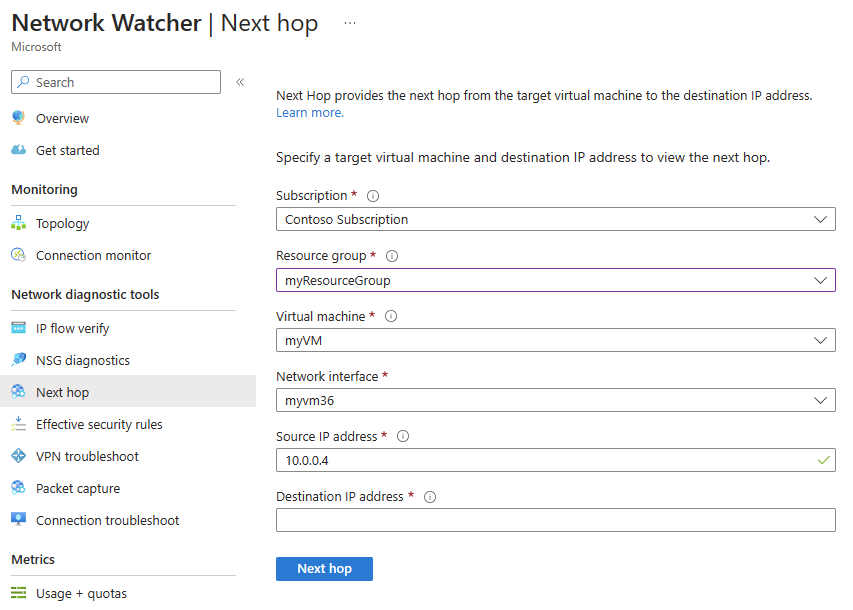
Next hop allows you to detect routing issues. It checks if traffic is routed correctly to the intended destination. It provides you with information about the Next hop type, IP address, and Route table ID for a specific destination IP address.
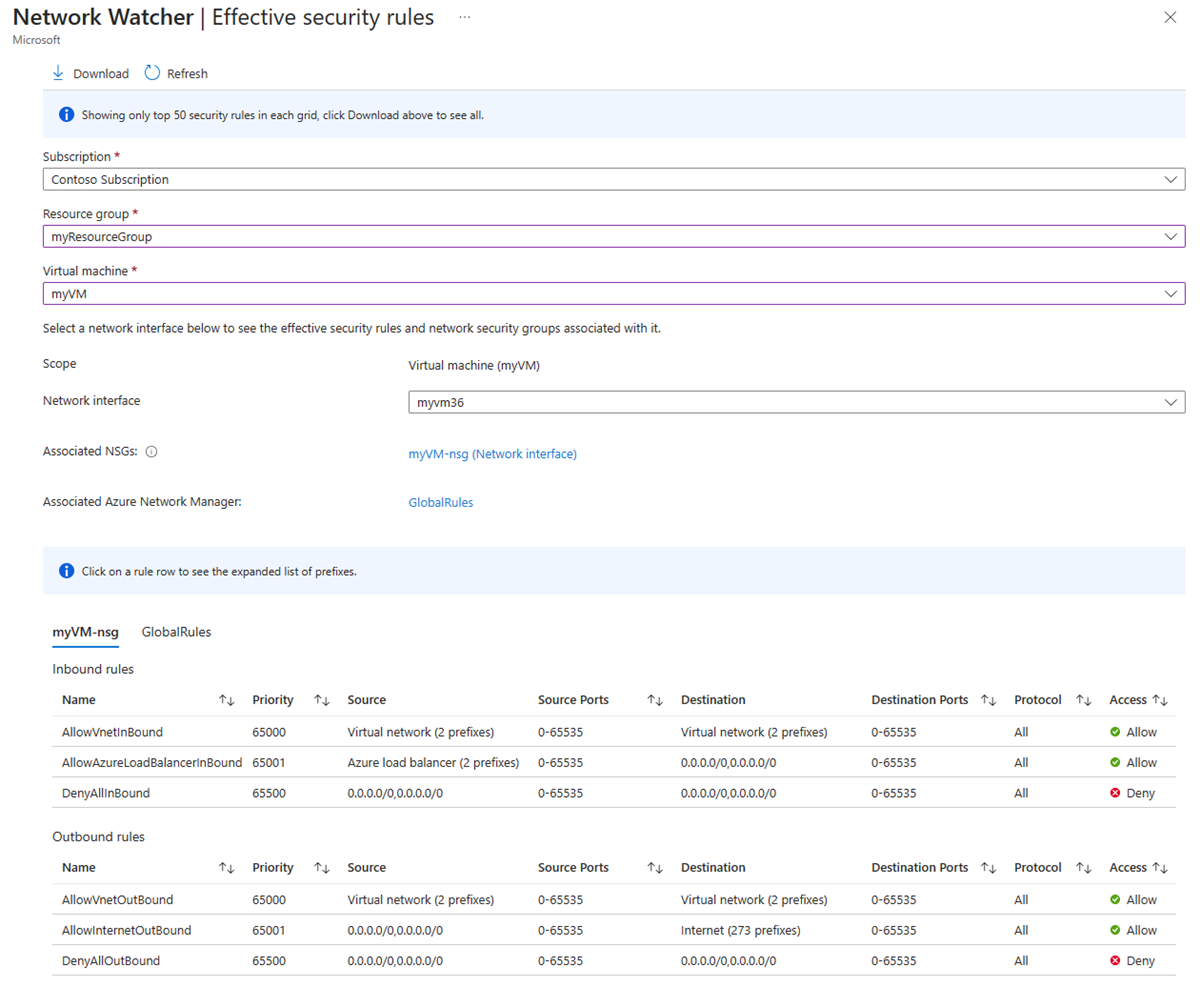
1.5. Effective security rules
Effective security rules allows you to view the effective security rules applied to a network interface. It shows you all security rules applied to the network interface, the subnet the network interface is in, and the aggregate of both.
1.6. Connection troubleshoot
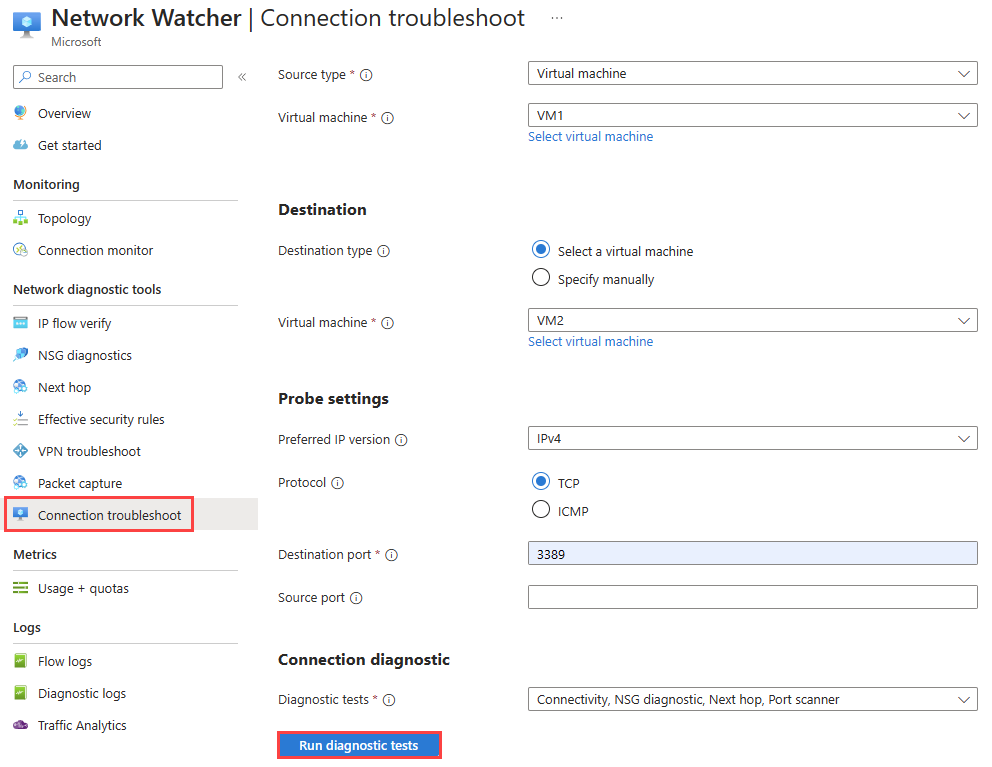
Connection troubleshoot enables you to test a connection between a virtual machine, a virtual machine scale set, an application gateway, or a Bastion host and a virtual machine, an FQDN, a URI, or an IPv4 address. The test returns similar information returned when using the connection monitor capability, but tests the connection at a point in time instead of monitoring it over time, as connection monitor does.
Connection troubleshoot requires that the virtual machine you troubleshoot from has the Network Watcher agent VM extension installed. The extension is not required on the destination virtual machine.
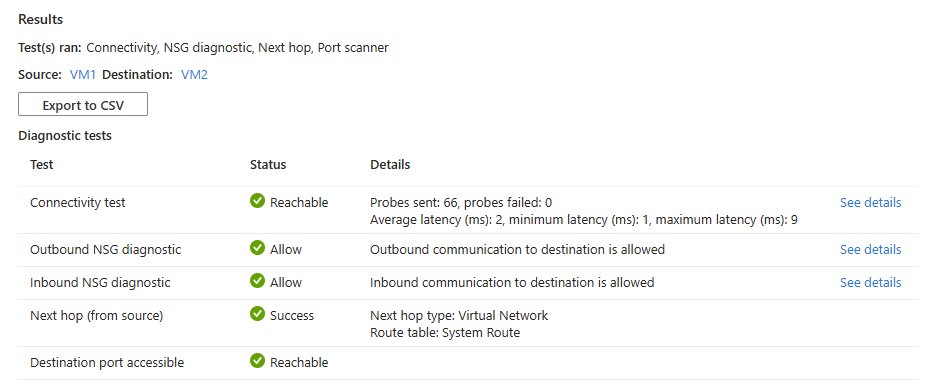
This tool can run other Network tools: NSG diagnostic, Next hop, Port scanner, Connectivity test.
Example:
Result
Ref: https://learn.microsoft.com/en-us/azure/network-watcher/connection-troubleshoot-portal
1.7. Packet capture
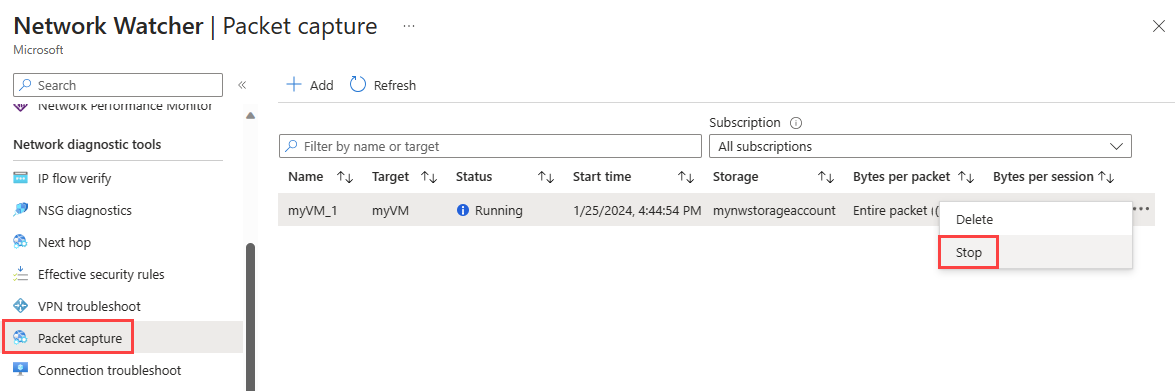
Packet capture allows you to remotely create packet capture sessions to track traffic to and from a virtual machine (VM) or a virtual machine scale set.
Example:
Update config and select Start packet capture.
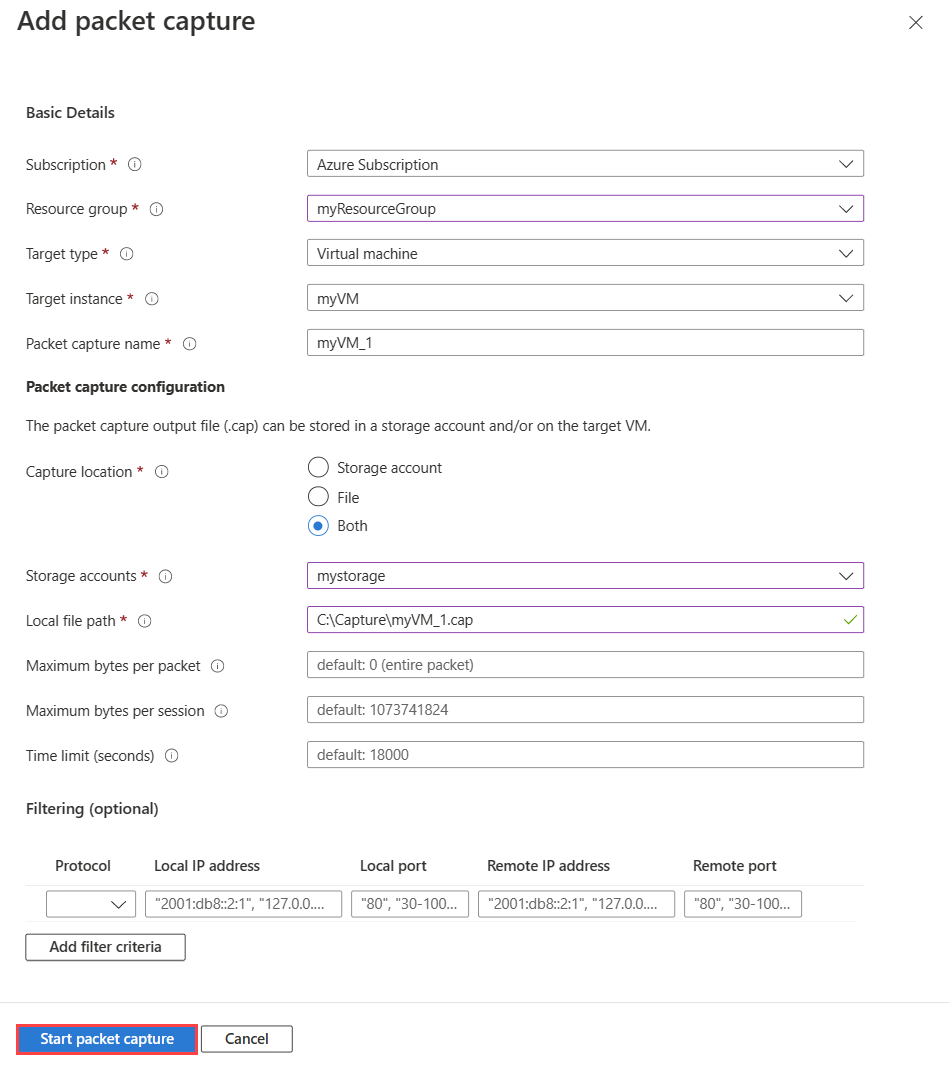
Once the time limit set on the packet capture is reached, the packet capture stops and can be reviewed.
1.8. VPN troubleshoot
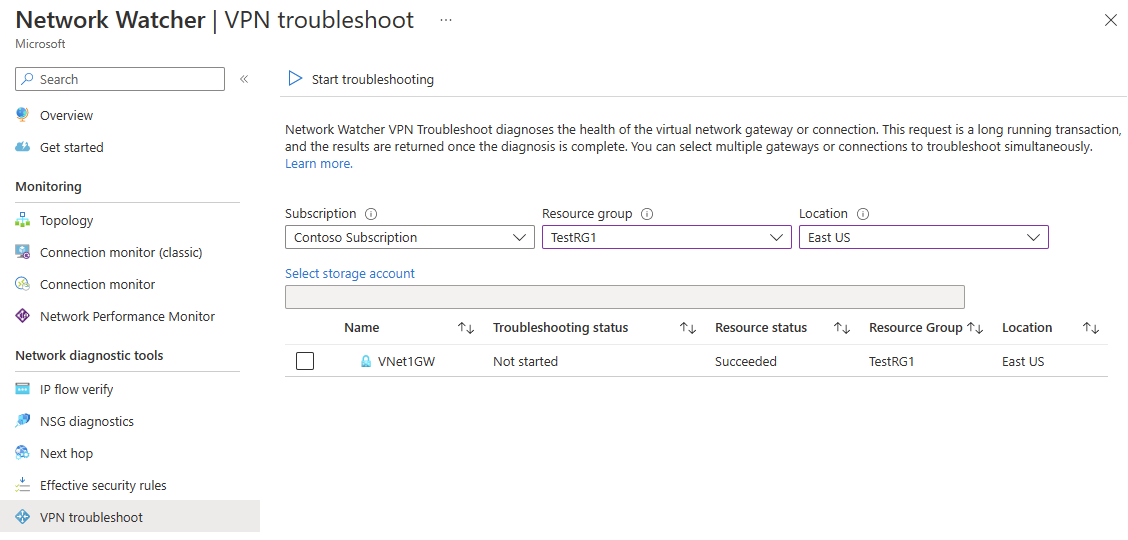
VPN troubleshoot enables you to troubleshoot virtual network gateways and their connections.
NSG Flowlogs
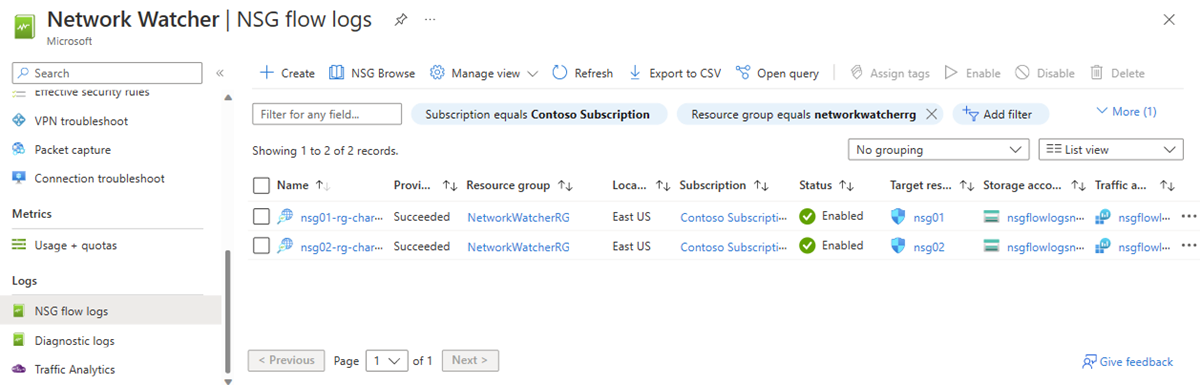
Network security group (NSG) flow logging is a feature of Azure Network Watcher that allows you to log information about IP traffic flowing through a network security group. Flow data is sent to Azure Storage from where you can access it and export it to any visualization tool, security information and event management (SIEM) solution, or intrusion detection system (IDS) of your choice.
Ref: https://learn.microsoft.com/en-us/azure/network-watcher/nsg-flow-logs-overview